Record a useful product demo with free desktop tools
Plan, capture and edit a short screen demo that explains one task instead of touring every feature.
A short demonstration with a clear starting problem, visible action and understandable result.
A product demo is easier to follow when it answers one question. “How do I turn this brief into a saved project?” is more useful than “Here is everything in the app.” This is a suggested recording workflow; it does not claim a particular production result or audience response.
Free boundaries before you start
Source checks for this workflow. These notes clarify older catalogue summaries; they do not change your saved toolkit.
OBS Studio · checked 2026-10-13
Free open-source desktop recording/streaming software with unlimited scenes; no subscription tier indicated. Recording capacity depends on device/storage. GPL-2.0 repository licence; plugins, media and streaming services may carry separate terms.
No account required for the described local use or download.
Kdenlive · checked 2026-10-13
Free desktop video editor with no licence fee, registration, subscription or paid feature unlock. Export supports FFmpeg formats including MP4 and UHD/4K. Hardware and media rights still apply. GNU GPL software; underlying media and assets retain separate rights.
No account required for the described local use or download.
A small example to aim for
A project, neatly organised.
Save a tool to the project.
Make a stack of your own.
FreeStack example output · illustrative, not a provider screenshot or a tested export.
Jump to a step
Write a three-part script
Start with the problem, demonstrate the action, then show the result. Put one sentence beside each part. Use a realistic example with dummy information and prepare the application state before recording. If the viewer needs an explanation of five unrelated features, split the idea into separate videos.
Make a short capture test
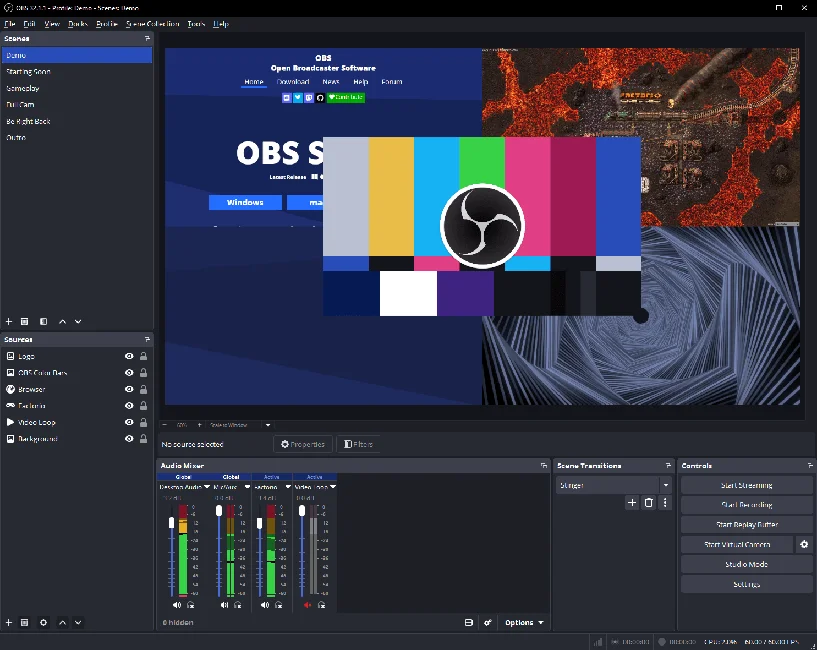
OBS Studio can capture a screen or application alongside audio sources. Follow its setup guidance and record a short sample before the real take. Check that text is readable and the voice can be heard. Hide private windows and notifications, and confirm that the recording includes only what you intend to show.
Keep the performance simple
Move the pointer deliberately and leave a short pause around important actions. Avoid narrating every visible click. If something goes wrong, pause and repeat the sentence so the edit has a clean starting point. Keep the original recording unchanged and work on a copy.
Edit for understanding
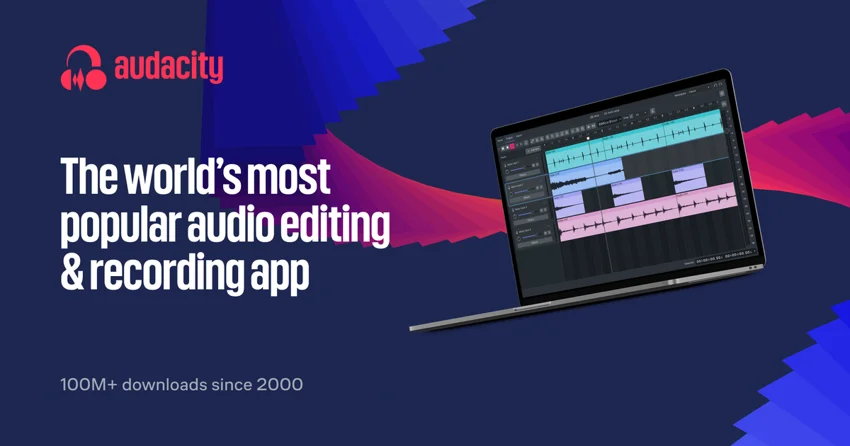
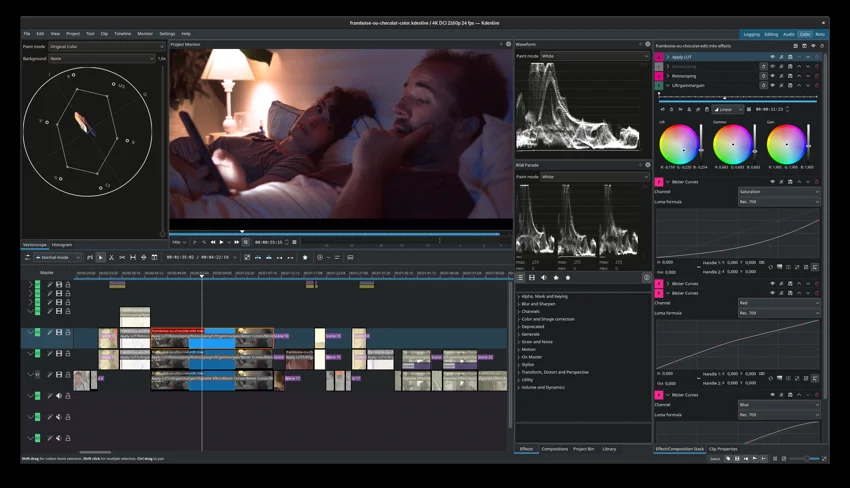
Use Kdenlive to assemble the demonstration and remove waiting or repetition. Audacity is an option if a separate voice recording needs attention. Listen after each processing change; a voice that sounds heavily filtered can be harder to follow. Add readable captions or explanatory text where they make the task clearer, then verify the wording.
Check the actual delivery file
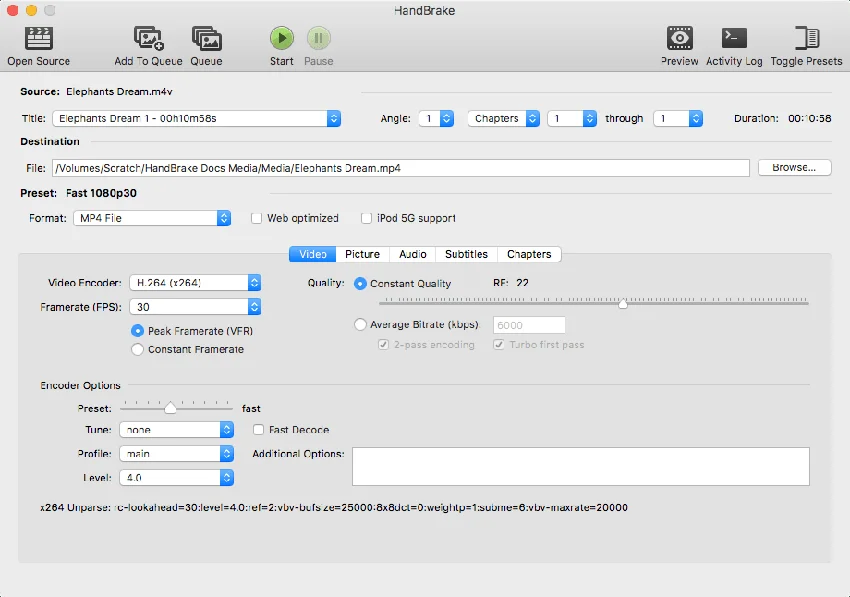
Watch the exported video from beginning to end with headphones and again on a small screen. HandBrake can help prepare a more convenient delivery format when needed. Keep the high-quality original. Check the destination’s current format requirements before uploading, and make sure the final frame gives the viewer a useful next step.
Your workflow, connected.
Follow the steps and carry the output into the next stage. These are suggested handoffs, not automatic integrations.
Provider information
Check current plans and documentation before committing to a workflow.
View 3 provider links
A couple of useful questions
Do I need a separate audio editor?
Not necessarily. Add Audacity only if your audio task benefits from it; avoid moving files between tools without a reason.
What length should the demo be?
Use the shortest length that clearly explains the chosen task. A complete, focused explanation is more useful than meeting an arbitrary duration.
What would you try?
Share your result or ask a specific question about this workflow.
Join the conversationKeep building
 OBS Studio
 Kdenlive
Record a launch demo that gets to the point
A storyboard and recording checklist for showing one useful result, with OBS and Kdenlive.
 Excalidraw
Map a client approval workflow before buying automation
Turn a messy feedback loop into one readable diagram and a clear decision about what needs automating.